Sunday, May 24, 2015
We moved to Word Press!
Hello Everyone!
I know people come over here a lot to find resources. FEel free to check out our site but all NEW entries
are being hosted over at https://adaptedinnovation.wordpress.com/
Sunday, December 7, 2014
Product Review: Coughdrop AAC
Cough Drop AAC is a brand new cloud based Augmentative Alternative Communication System, created by Brian Whitmer, a computer programmer and father of a child with a disability. The free, web based Beta version launched on October 9th and is available by signing up at www.mycoughdrop.com until January 9th. This system was created to better serve children with unique and complex communication needs, such as autism, Rett Syndrome, selective mutism, MS, ALS, traumatic brain injury, to name a few.
Cough Drop AAC system is based on collaboration and data based reporting for IEP team members. I think it is like the Google Drive for the AAC users and can be used across laptops and tablets. One of the more frustrating aspects of current AAC programs on the market is modifying boards. If I modify a student's board on my laptop, each therapist that has access to that child's user and board information also has to make the changes. That's just inefficient, especially for children who rely on us for their voices. Like Google Drive, Cough Drop AAC updates changes that other team members make on a user's account across the board. That is the benefit of the cloud based system. Another great feature among therapists, is the ability to share core boards and other custom vocab based activities as a social network.
![]() |
| Home Screen with Core Word Screen with Easy Navigation Share Feature Social Network and board sharing among other professionals Color Editing Feature and Modification That Changes Across Devices |
Creating A Board for A Child with Cortical Visual Impairments:
Since I work with children with visual impairments, I created a board that was custom built for a 13 year old child with visual impairments with complex communication needs. This particular board was created for a child with cortical visual impairments and very involved gross motor challenges. However, she is very expressive and relies on others to physically help her make adjustments to her iPad screen settings for her visual needs. Her expressive language is not always clear, so we created a core vocabulary board for her visual modifications on her iPad and computer screen using Cough Drop AAC. Here is what we created for her.
My Experience Editing the Board:
Editing the boards was very easy and intuitive if you have worked with other dynamic systems. It is easy to navigate and uses easy language. I was able to easily altar the size and color of images on the boards. Brian has created a very easy way for those of us that work with the visually impaired, to augment the visual presentation of these communication boards. Cough Drop AAC also features several voice output options and a "Speak It" feature within the system that enables the user to use his or her core word vocabulary board as a tool for expressive language directly from the website.
Final Thought:
Cough Drop AAC is an innovative system that is going to catch AAC users up with the 21st Century. Brian has ideas of making it compatible to make Cough Drop AAC compatible for tweeting on Twitter and writing Facebook status updates. I am excited to see how it will work with switch interfaces in up and coming versions.
Starting in January, the full version of Cough Drop will be available with a competitive monthly rates and free trial.
You can contact the creator, Brian Whiter at:
or on Twitter @CoughDropAAC
|
Friday, September 19, 2014
5 Great Resources on Partner-Assisted Scanning (PODD)
I have had the pleasure of working with quite a few children with visual processing issues that are ages 5-13 using Partner Assisted Scanning (PODD). PODD is defined by Novita Children's Services as:
Pragmatic Organisation Dynamic Display (PODD) is a means of selecting and organising symbols so that people with complex communication needs and their communication partners can communicate more easily.
I have been a part of several AAC meetings consulting the visual capabilities of children with visual processing issues and PODD in the last two days. I have several children on my caseload who have increased their vocabulary by using PODD with a communication partner. I wanted to share some great resources on PODD from a variety of perspectives: parents and professionals.
Click the blue link under the pictures to go to the correlated links
A Great Video from Assistive Technology Coalition of a child using PODD
Friday, August 22, 2014
Top Back to School Educational Technology Links
Paying attention to what is going in the world of education technology is extremely important for me as an AT specialist. If you think about it, what is happening in the world of Educational Technology will eventually be our job to adapt for our students with disabilities who attend their neighborhood schools. Educational Technology link can also help us teachers stay organized. Anyway, here a few of my favorite EdTech links:
About the Up and Coming Google Classroom <----Click Here
Storyboard Creator for Classrooms <---click here
Top 5 Mobile Learning Resources <--Click
Turn Your Pinterest Boards into a PDF <---Click Here
Thursday, August 7, 2014
A NEW Exploring Braille App Giveaway!!
ENTER GIVEAWAY HERE----> a Rafflecopter giveaway
After the excitement of this new app demonstration at the International AER Conference in San Antonio, app developer and programmer has given us THREE free download codes to use in a blog giveaway!!!
Hilary has recently updated the app with plans of creating a Grade 2 Braille level.
Giveaway begins at midnight, 8/7 an ends at midnight on Wednesday, 8/13
Saturday, July 26, 2014
Daisy the Dinosaur App: A Coding App for Pre-Schoolers
While this app certainly is for the educational technology sector of this technology world, I wanted to give it some attention because I think coding is a really important skill that I have started to introduce to my own daughter with this app. As an assistive technology specialist, I think it is critically important to pay attention to what is being taught in the Ed. Tech world because our jobs as assistive technology specialists to adapt and teach these techniques for our students with disabilities. Anyway, I love Daisy Dinosaur because it introduces my own daugther (who is 4) to higher level problem solving skills through Gamification. One of the many things that I absolutely love about this *FREE* app is that there are two participation modes. In the "Free Play Mode" the has the opportunity to become comfortable with controlling the programming options and movements to make Daisy Dinosaur move towards the star. See the video below (sorry about the angle of the image in the video).
In Challenge Mode, the user is given a command for Daisy to complete. The user must then use the commands provided from the app to complete the tasks. Please the see the video below for a Challenge Mode Demo:
I am excited to see where the emphasis on teaching coding to our students it going to affect the areas of our technology curriculum. Daisy the Dinosaur app is great for kids with vision For kids with disabilities, especially those with kids with visual impairments, the idea of coding teaches students higher level cause and effect skills. If the Daisy the Dinosaur developers synced some voice over adaptations within the app, this app would be perfect for students with low or no vision with the ability to problem solve.
Friday, July 18, 2014
Gmail Commands for Dragon Naturally Speaking
I have been training quite a few clients on Dragon Naturally Speaking in the last six months. Many of my AT clients are choosing to use Gmail as their primary email system just as the rest of the world is as well. However, I have found that commands that work for Outlook and other email services with Dragon, do not necessarily work with Dragon. However, after perusing YouTube videos and other websites, I put together a list of commands that other users have found to be successful with Dragon.
UPDATE: Gmail only works when you are using internet explorer. It is NOT work using Google Chrome or Firefox.
Wednesday, June 11, 2014
Exploring Braille App Giveaway!!
Hi Everyone!! I am so happy to host this AWESOME giveway for Sensory Sun Educational Toy's new app Exploring Braille App. There will be ONE winner. You can enter from 5:00 PM CT today until 5:00 PM ET on 6/19. The winner will be announced next week. Please enter using the Rafflecopter link below.
CLICK HERE ---> a Rafflecopter
*We highlighted Hilary Kleck's story about creating the Exploring Braille App last month on our blog.*
CLICK HERE ---> a Rafflecopter giveaway
CLICK HERE ---> a Rafflecopter
**SCROLL ALL THE WAY TO THE BOTTOM OF THE RAFFLECOPTER PAGE TO THE FIND THE ENTRY FORM**
*We highlighted Hilary Kleck's story about creating the Exploring Braille App last month on our blog.*
CLICK HERE ---> a Rafflecopter giveaway
Thursday, May 29, 2014
Saving and Raising Money: {Perkins Smart Brailler and LightAide}
Perkins School for the Blind and WonderBaby.org are promoting some *great* ways to save money on two of their newest products! Click the above link read more from Amber Bobnar on these deals and ways you can raise money to purchase this device for your school district or child with visual impairments in your family. The Smart Brailler is an electronic Brailler that has been making the experience of writing Braille more of a multi-sensory experience for tactile learners. Please read more about this device here: Perkins Smart Brailler
As some of you may remember, I had the opportunity to test out the LightAide with some of my clients with Cortical Visual Impairment and other visual processing issues. You can read more about Philip's LightAid here and my product review on the device here.
Tuesday, May 27, 2014
My New Favorites: Apps and Devices
I spend a lot of time curating resources and devices on all things related to Educational and Assistive Technology on Pinterest and Scoop It. I wanted to share a few of my favorite sem-recent links from the two sites in a blog post. There are some really innovative approaches being created for kids of all abilities out there. It is great that we can use social media to share the wealth of knowledge.
Friday, May 9, 2014
Exploring Braille App: An Up and Coming App for all Tactile Learners
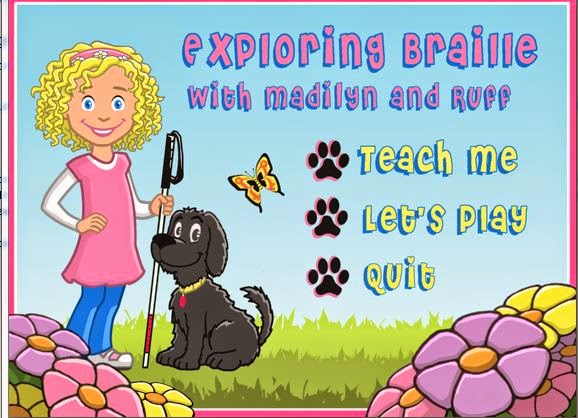
It is my pleasure to have Hillary Kleck guest posting on this blog today! Hillary is an app developer and social media advocate for the needs of children with visual impairments on her Facebook Page, Sensory Sun Educational Technologies. Hillary is also the proud mother of Madilyn, who has inspired the development of the Exploring Braille App. While the Exploring Braille App is not yet available in the iOS Store, Hillary's story about the inspiration for the need for Exploring Braille is impressive, ambitious and functional for all tactile learners. Please read her story below:
How many times have you purchased an app hoping it would be something your visually
impaired child could effectively use? I've spent entirely too much on apps for my daughter that
didn't pan out to be even remotely accessible with VoiceOver or even something she could just
play around with for some enjoyment. The abundance of letters and phonics apps with her
favorite characters were (and still are) so enticing! "Maybe this one will encourage her
interests," I would say to myself, but none of them ever presented braille- her only method of
reading independently. I kept telling myself that eventually one of them would be everything I
wished for in an educational app.
As you may imagine, my dream app was never found. It had to be created! I finally put my mind
to work and started designing an app my daughter would love, and then maybe other potential
braille readers would, too. I felt so strongly about how much Madilyn could achieve if only she
had a product like I envisioned. She needed something that incorporated her senses- touch and
hearing- and visually appealing for me. It was possible. Too many times I talked myself out of it
thinking it wouldn't be good enough. There were no more excuses; it had to be done and I
decided it was up to me. I had experience in programming so all I needed to do was learn a
similar code and get to work.
I took the methods I used for teaching Madilyn without much technology and applied them to the
design of the app. I began with dreaming of the best way she would learn and went from there.
Simply enough I wanted it to teach her to read and write the braille alphabet. The iPad and
refreshable braille device would take my place as the teacher so she could learn more
independently, allowing me to be the guide only when necessary. It needed to be fun and
interactive, engaging her through sound and touch. I decided she would love it even more if it
included her as a character and her dog Ruff as the trusty sidekick. Hence, "Exploring Braille
with Madilyn and Ruff" was created.
I am not satisfied believing that the best way to teach and learn braille has already been
developed, or even realized already. The current app will be developed into a suite of apps to
create a full braille curriculum for young braille readers to use, learn and enjoy. New research,
technology and experiences will definitely shape the apps so the suite will appeal to students
with varying cognitive, fine motor and vision levels. It is my hope that people will continue to be
intrigued by the way blind children perceive the world, and do their part in making it more
accessible. The best is yet to come!
Tuesday, April 1, 2014
Switch Apps: EIEIO
Above is a video of the EIEIO App in the "Sing" activity section (see below for my perspective and favorite key features)
It has been a real pleasure working the RJ Cooper Super Switch over the last few weeks several of my students. The iOS Switch Accessibility options really opens the world of communication and play up to students with motor impairments, visual impairments and mild hearing losses. The accessible apps that I have selected to review were found my perusing Jane Farrell's switch accessible app list from her website. What I love the most about switch accessibility for iOS is that it gives students with gross motor challenges and additional disabilities options to access apps that are cognitively engaging to them using a variety of a switch setting options that can be found in the Settings options of each app.
The app of the video above presents "Eieio" a switch accessible app for 2-5 year olds that increases the child's understanding of animal sounds. EIEIO is an impressive app because of the variety of activity levels found within the app. For the child young child who is just learning about cause and effect, I would recommend that the therapist, parent or teacher focus on the "Read" activity first then move to "Explore" or "Sing" activities. After the child has a handle on auditory and/or visual scanning as well as the opportunity to explore the different animals sound independently within this app, I would the recommend that the therapist, teacher or parent move them to the highest developmental level and that is "Learn."
Here is a break down of the switch task and developmental tasks being asked of the user in each level:
Below is also a screen shot of the switch settings options. I love that you can decipher between direct touch activation and switch activation. Another key feature that I love is the ability to choose between auditory and visual scanning presentation options (see below):
Wednesday, March 19, 2014
My FavoriteTobii ATI Products (Eye-gaze hardware and software)
It has been a professional goal of mine to reach out to more vendors and software developers to learn more about their products and enhance more partnerships between the Assistive Technology Specialists and the people creating and selling the products. Last week I had a great opportunity to meet up with Mckenzie Sauser, our local Tobii ATI Representative for St. Louis and Kansas City to get an update on the latest on Tobii Products.
For those of you new to the Tobii ATI technologies, creates Augmentative Alernative Communication software, apps and devices. They specifically specialize in eye-gaze tracking enabled communication and computer access for those with extremely limited motor movements. Below is a list of my favorite Tobii software and eye gaze devices that McKenzie reviewed with me last week. Please click the links below each photo to go explore more about each product on the Tobii website.
I love the Tobii I-Series because it gives users with high functional cortical visual impairment and very limited motor control another option for possible communication. I have found that many children with multiple disabilities including those with high functional cortical visual impairment can sometimes be successful with an eye gaze series as their visual processing levels increase. Since these types of users are fighting their muscle tone on a daily basis, their functional vision can sometimes be the most functional way to access communication. However, I would recommend that the IFSP/IEP team work with the student on eye gaze training using eye gaze training apps such as Sensory Light room to assess the accuracy of the child's visual targeting skills.
![]() | ||||
| PC Eye Go |
The PC Eye Go is mostly for users who mostly work with their laptops. I love that Tobii has created a customizable piece of hardware that makes any PC or laptop eye gaze accessible with the addition of the PC Eye Go.
Sono Primo is a great software for young users who are learning more abstract graphical images (line drawings) through whole part concepts, social stories, symbols and problems solving games.
Friday, March 7, 2014
Basic Visual Considerations for AAC Devices and Apps
Children with visual processing disorders such as cortical visual impairment tend to need specific visual accommodations than other AAC users. The following recommendations are based off the CVI Range created by Dr. Christine Roman-Lantzy. The CVI Range measures a child's visual processing abilities in the following ten areas: color, distance viewing, movement, latency, visual fields, complexity, light gazing, visual reflexive responses, visual novelty and motor. For the purposes of this blog entry, I focused on the areas of the CVI Range that directly related to creating AAC communication boards. For today's entry I am focusing on Color Preference, Latency (Delay), Visual Field Preference and Complexity.
For more information on photographing objects for AAC devices, please check out Andrea Schario's tips on photographing objects for children with visual impairments in the presentation from our webinar: Helping Children with Visual Impairments Explore, Learn and Communicate Using the iPad
Color Preference
It is common that children with visual impairments with Cortical Visual Impairment have a preferred color that they can fixate on for longer periods of time (red and yellow are the most common). When creating a communication board for a child with CVI (or low vision), it is important for the therapist or special education teacher to talk to the Teacher of Students with Visual Impairments to help the student's IFSP/IEP determine what the user's preferred color might be.
It is common that many dynamic AAC devices and apps give the user the options to choose the color of the border that surrounds the icon on the AAC device. I would recommend that the therapists consider using the child's preferred color as the boarder when creating a board on a dynamic display.
Latency
When considering a child with CVI's visual abilities, it is important for the child's AAC team to choose an app or device that visually isolates the choice the child made for an extended period of time to account for the child's visual processing delay. For example, on the AnswersHD app, the user has the option to hold the child's choice in isolation for 2-6 seconds after they make their choice. Since I have so many young kids, I usually error on the side of caution and keep this setting closer to the 6 second time.
Visual field preference
If the child uses the right visual field over the left visual field or vice versa, it is important for the user to consider the placement of the child's icons on the his communication board. Whether the therapist or parent is creating a board with 2, 4, 6, icons, it is important that the team move the preferred icons to the child's weaker visual side so he or she can improve the visual input of their weaker side and also continue to improve on recognizing the picture on the icon.
Complexity
Since many children with CVI struggle to focus on excess visual information on a page, I advise many AAC teams and therapists that it is better to keep the icons big, simple and bold with less icons present on a communication board. When it comes to students with CVI and complexity, it is wise to always have less icons with high contrast, large, simple icons.
Wednesday, February 12, 2014
Video Modeling for Children with Visual Impairments
In the last month, I have witnessed the benefit of seeing how video modeling can be useful for children with a visual processing issue or low vision to learn necessary early communication skills. In the world of special education, video modeling is known to be useful for children with Autism and Asperger's syndrome. Video modeling is defined as a way of observational learning in which the desired behavior is acquired via video.
However, I have noticed how video modeling on the iPad and iPhone can help children with low vision as well. Depending on the child's visual needs, I would suggest a therapist or teacher using an iPad over an iPhone when initially exploring this teaching strategy considering the vast difference in screen size. When exploring visual modeling with a child with a visual impairment pay attention to the following:
1. Make sure the brightness settings on your iPad are adapted for the student/user's visual needs.
2. When video taping, keep in mind that the focus of the video needs to be on the person performing the desired behavior or communication skill. Make sure the child, adult or peer models are wearing muted colors and the walls are free of excess visual clutter.
Students can learn these desired skills in one of four ways:
1. The child watching themselves complete a task
2. The child watching a peer complete a task.
3. The child watching a video of an adult completing a desired outcome.
4. The video providing feedback for a child's performance (mostly for older children).
The video below was used to teach a child on my caseload with a developmental delay and cortical visual impairment how to sign:
Beth Waite, SLP-CCC recently presented a webinar on iPad apps to use to teach video modeling through AbleNet University. She suggested the following apps to help capture and present video modeling for users of all ages:
However, I have noticed how video modeling on the iPad and iPhone can help children with low vision as well. Depending on the child's visual needs, I would suggest a therapist or teacher using an iPad over an iPhone when initially exploring this teaching strategy considering the vast difference in screen size. When exploring visual modeling with a child with a visual impairment pay attention to the following:
1. Make sure the brightness settings on your iPad are adapted for the student/user's visual needs.
2. When video taping, keep in mind that the focus of the video needs to be on the person performing the desired behavior or communication skill. Make sure the child, adult or peer models are wearing muted colors and the walls are free of excess visual clutter.
Students can learn these desired skills in one of four ways:
1. The child watching themselves complete a task
2. The child watching a peer complete a task.
3. The child watching a video of an adult completing a desired outcome.
4. The video providing feedback for a child's performance (mostly for older children).
The video below was used to teach a child on my caseload with a developmental delay and cortical visual impairment how to sign:
Beth Waite, SLP-CCC recently presented a webinar on iPad apps to use to teach video modeling through AbleNet University. She suggested the following apps to help capture and present video modeling for users of all ages:
Saturday, February 1, 2014
Favorite 5 Assistive Technology Devices from ATIA
I was extremely impressed with professionals and vendors that I had the honor of speaking to while I was at ATIA this last week. It was great to walk around the exhibition hall connecting with other assistive technology professionals and making contacts and plans with vendor sales reps for some technology fairs. Considering the majority of my professional time is spent educating others on the devices out there, it always feels good to be on the other side of the fence, being the student and taking in all the new innovation. However, I wanted to share 5 of my favorite devices and software programs that I encountered while I was at ATIA:
Augmentative Alternative Communication
What I love about it:
- It is one of the best Augmentative Alternative systems that can run on Android platform.
- Allows users to text into Social Networking Sites using the device
Low Vision/Blindness
What I love about 6Dot:
- Easy QWERTY Keyboard Input connected through USB
- Once it is charged, it is small and portable so it can be taken anywhere
- The pairing of the desk top and the mobile Prodigi means that user would only have to learn one operating system in order to maximize the capabilities of the device
- The Prodigi photographs crisp, high resolution pictures in books for enlargement
What I love about it:
- Easily adjustable after installation
- The modular hose can be used on both surfaces such as table tops or the users positioning device (standers, wheelchairs, etc)
What I love About it:
- It is a joystick that can be ordered specifically for computer navigation
- This would be a great switch for a student or consumer who needs joystick training before prior to owning a power wheelchair.
Sunday, January 19, 2014
The LightAide: An Innovative Device For All
I was honored to be asked to field test the LightAide by the product creator, Dr. Catherine Rose. She worked effortlessly to create this device on behalf of her daughter who has a visual impairment. This is a device that came straight from the amazing ideas of a proactive and creative parent! It was beyond fun to test, collaborate and brainstorm on the capabilities of this device with other parents of children with visual impairments.
The LightAide was tested out with one of my students, a toddler with visual impairments and additional motor challenges. His mother and I put our thoughts on the device together and collaborate on this post.
The LightAide, developed by Perkins School for the Blind and Dr. Catherine Rose of Philips, is an innovative educational tool for children with low vision and additional disabilities. The LightAide presents a variety of interactive LED light displays appropriate for a wide spectrum of developmental levels. With the LightAide, users can work on color recognition, sequencing, cause and effect skills via switch activation and basic literacy and math skill development.
The LightAide screen is approximately the size of a large laptop computer screen and is supported on an adjustable stand that be adapted for a child with visual impairment's preferred visual viewing level. The LightAide is laid out so that the user can access the activities via a single switch that it is appropriate for the fine motor abilities of the individual user (i.e.JellyBean, BigMack, Stick Switch, Lever Switch,). The user can choose between sensory, literacy, and math based activities on the menu on the left hand side of the device. The parent or professional can scroll through the variety of activities on this menu to determine the desired activity, ease, color options and the speed of the visual stimulus (i.e. dots, individual letters, numbers, etc). Please view the YouTube video below to see the LightAide in action:
Our Take On the LightAide
The LightAide was a very innovative, universally designed device. The high contrast, multi-colored lights on the board with the amount of visual and graphic information options that the user can choose from made the LightAide appropriate for the diverse populations that I serve in the field of visual impairments. During our experience with the device, the toddler was able to access the LightAide with a large, single introductory switch. As a one year old, he was able to follow the single colored shapes and lines using his head and eyes together. The speed of the moving stimulus was decreased so the toddler could easily follow the moving shapes and activate the switch during the cause and effect activities. He enjoyed the variety of switch accessible games on the LightAide and the amount of options offered on the LightAide increased his attention to to task on the cause and effect activities. Since I work primarily in early intervention, the LightAide would be most beneficial for me to perform Functional Vision Assessments and Assistive Technology Evaluations, specifically for students with cortical visual impairment and additional physical disabilities.
The mother of the child with visual impairments stated that the device was appropriate for children of all ages but most of the activities, she felt, were meant for children that were over the age of 3. In upcoming versions of the LightAide we hoped the developers would consider making the LightAide screen accessible via touch screen. We think this feature would make the LightAide a successful learning tool for an even larger number of children with visual disabilities and offer another device for children with low vision who are dual media learners to learn both Braille and large print. We also thought the device could be improved with the addition of a wall attachment so it could suspended on a wall. This could possibly increase the visual and physical accessibility of the device for more distance viewing activities.
Tuesday, January 7, 2014
BrailleTouch: Innovative App but Overpriced
The App Features
The BrailleTouch App for iPhone and iPod Touch promises its users the opportunity to type on a Braille touch screen
keyboard. This capability makes it possible for users that write
Braille the opportunity to type e-mails, text messages and tweets from
their iPhone after purchasing the full version of the app after the free
download from the app store.
The BrailleTouch Keyboard is laid out so that the user that learned to write Braille on the Perkins Brailler can access the keypad with the same fingers that he or she uses on the Brailler or other electronic Braille writing devices. However, because of the layout of the keypad, the user must hold their iPhone in a landscape position so they can use their pointer, middle and ring fingers on both their right and left hands to type on the BrailleTouch Keypad. As the user types on the keypad, the voice over features within the app will dictate the Braille letters as the user types.
![]() |
| Screen shot of Braille user display on the iPhone |
![]() |
| The recommended way to hold the device for best accessibility |
My Take On the App
Becoming comfortable typing Braille on my iPhone in this position took about two-three
hours. At first it felt awkward and my ability to
type words was slow. However, keep in mind I do not use Braille as a
primary means of written communication but this change in ergonomics does require a learning curve for those that are used to writing in a traditional Braille keyboard position.
Overall, this is a great Braille touch screen but it needs more access options at the price the developers are currently asking with the time it takes to learn to type on the app.
Below is a link to a video of a live demo of the app:
Subscribe to:
Posts (Atom)